UNDERSTAIRS

UNDERSTAIRS for phone and tablet

Your library goes with you.

Smart downloads keep your next episodes ready on your phone, so you can watch on a plane or a train with no signal. They work the same on iPhone and on Android.

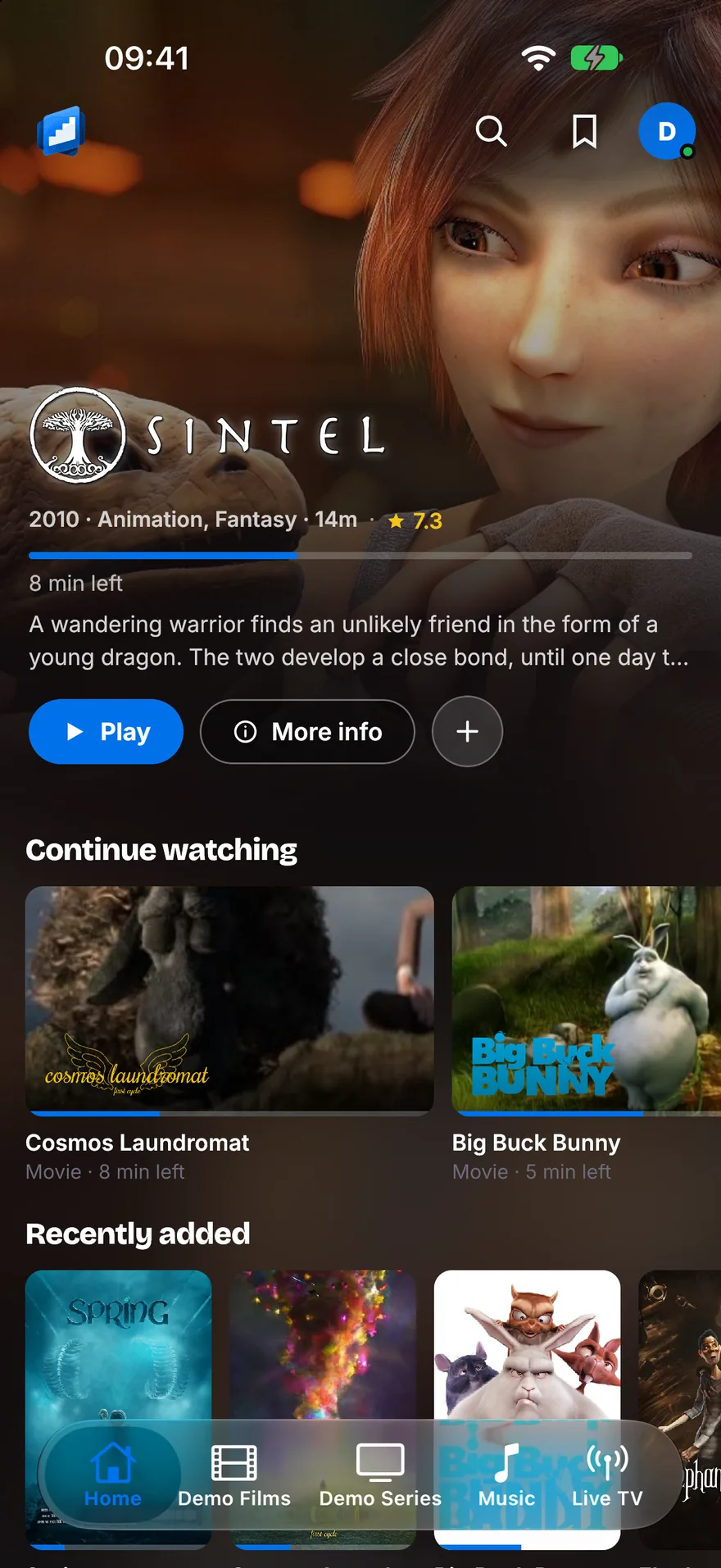
The phone home screen: Sintel on the banner with its logo, then a Continue watching row with Cosmos Laundromat and Big Buck Bunny.
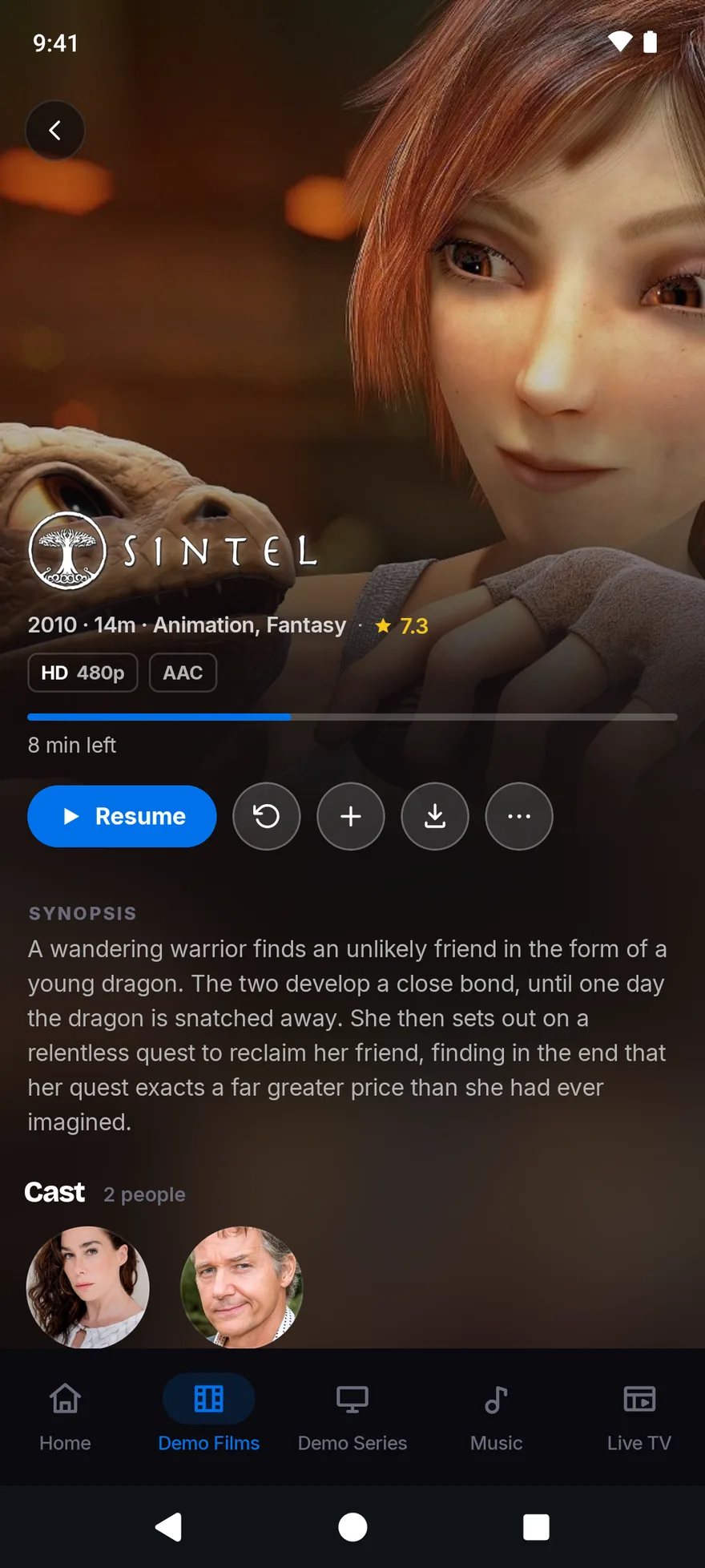
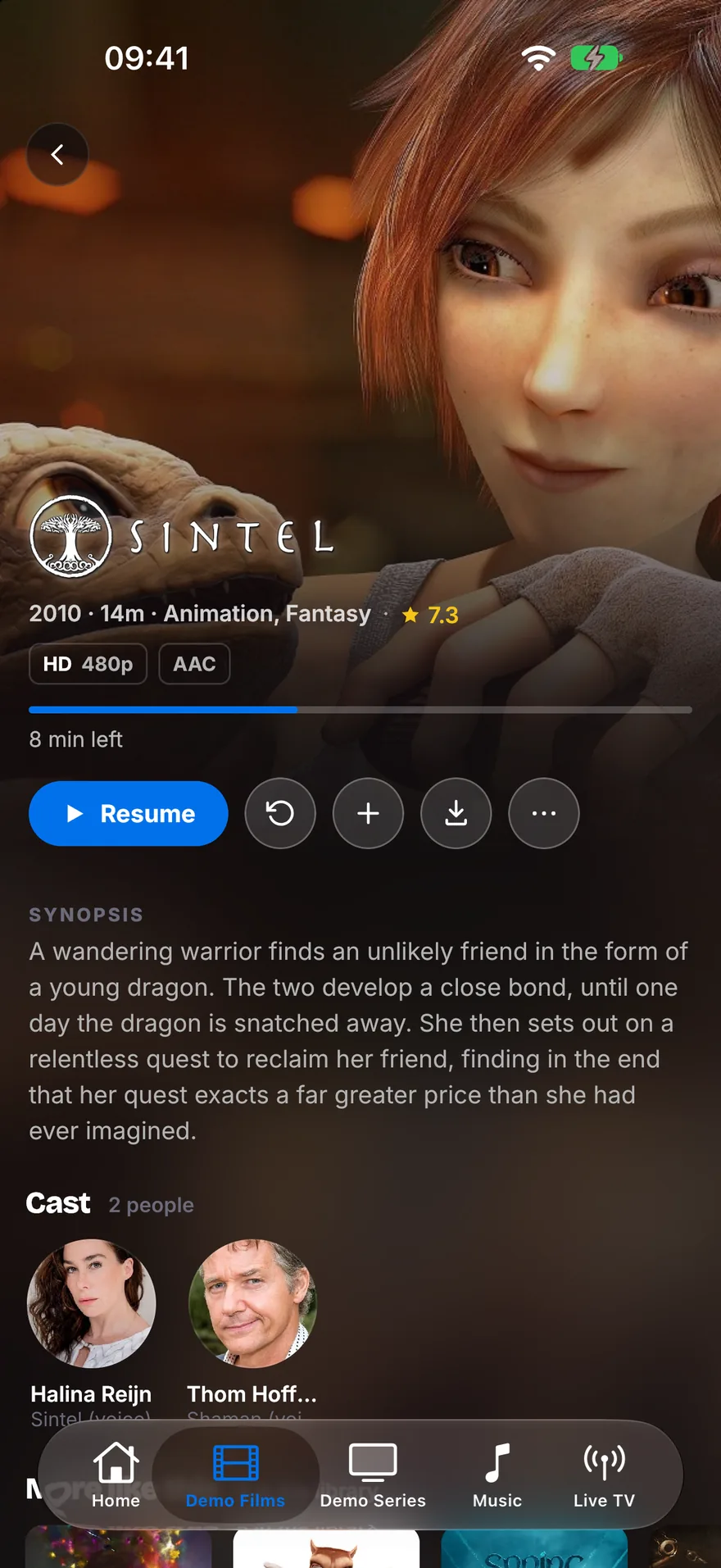
The Sintel page: its logo over the backdrop, a Resume button beside Play from start, Watchlist and Download, then the synopsis and the cast.
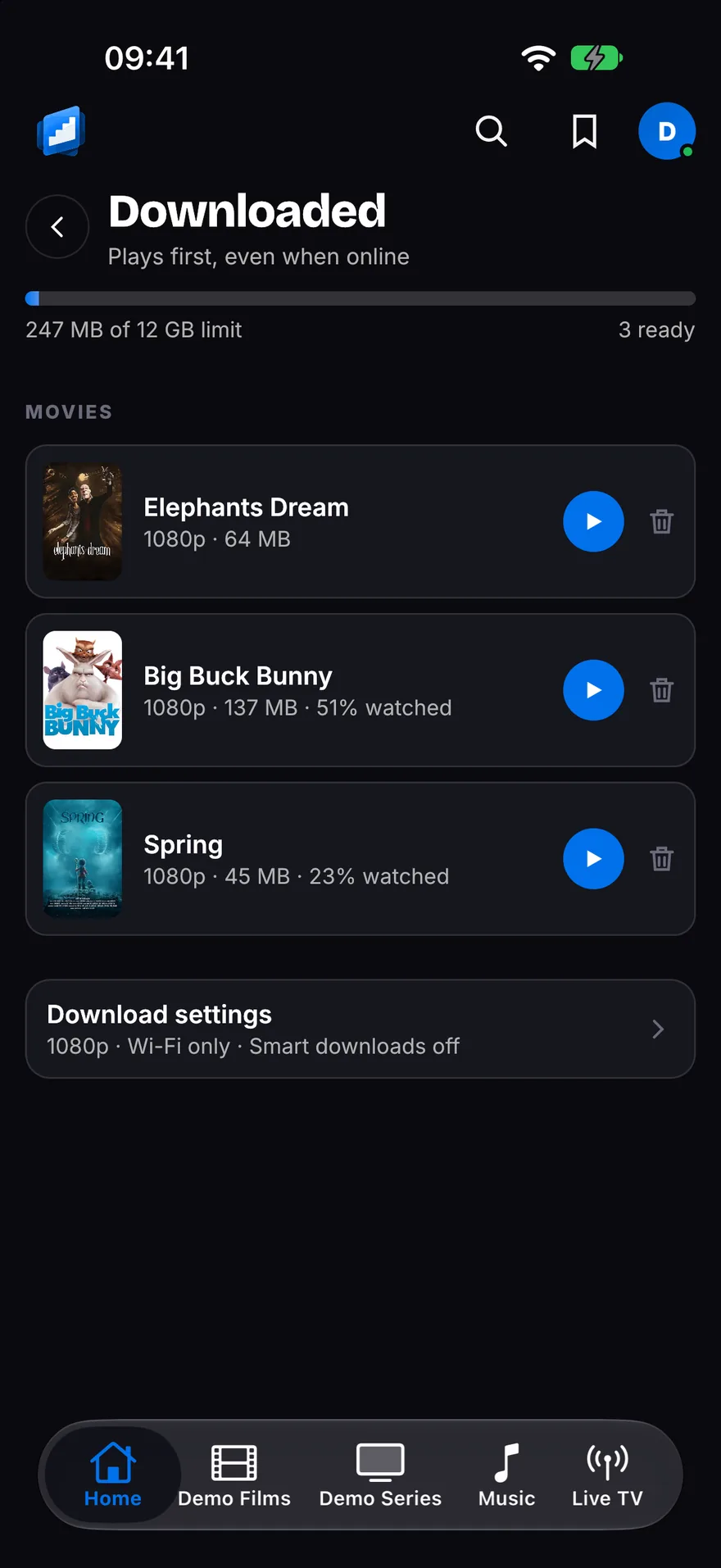
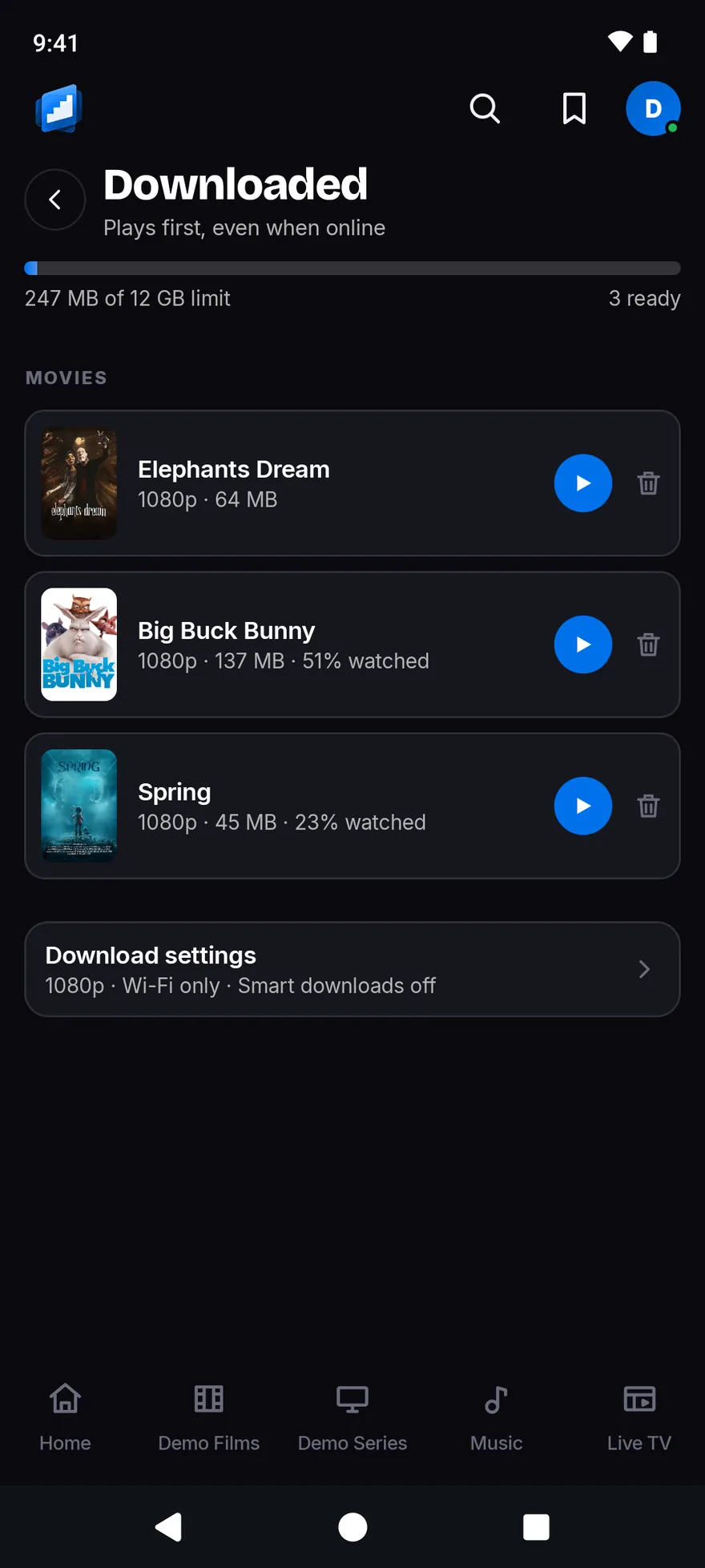
The Downloaded screen with a storage meter and three films ready to play: Elephants Dream, Big Buck Bunny and Spring.

Preview film coming soonShown with the Blender Foundation’s open films

Reasons to buy

What the phone apps do for you.

Each one says which apps have it. The small print is in Good to know, at the end of the page.

On iPhone and Android phone

Smart downloads

Tell your phone to keep the next 1, 2, 3 or 5 episodes of a show ready.

Finish one and the next is already there. The one you watched clears itself off, even if you watched it on your TV.

When a new episode arrives, the app gets it ready and gives you a nudge. Downloads wait for Wi-Fi unless you say otherwise.1

The Downloaded screen with a storage meter and three films ready to play: Elephants Dream, Big Buck Bunny and Spring.

On iPhone and Android phone

Straight back in

Home opens on what you were watching, and on the next episode of your shows.

Each one shows the title’s own logo. Tap it and it plays. There is no page to open first.

On iPhone and Android phone

Skip the intro, skip the credits

One tap jumps over the intro. Another jumps over the credits.2

In Settings you can switch on Skip intros and Skip credits, and the app skips for you.

On iPhone and Android phone

No needless converting

The app asks your phone what it can play, and sends the film as it is.

Your server converts only what your phone cannot play.

On iPhone and Android phone

Live TV and recordings

Watch your server’s live channels and open the guide.3

Record a programme or a whole series. Start a live programme again from the beginning.

On iPhone

CarPlay

Your music on the car screen: Home, Library, Search and the music you downloaded.4

Say what you want and it plays. Switch server, shuffle, repeat and see what is next.

On iPhone, with Apple Watch

Apple Watch music

Your music on your wrist.5

It works on its own, with albums and playlists saved on the watch, or as a remote for your iPhone.

Set a sleep timer, and turn the crown for volume.

On iPhone and Android phone

Who is watching

Everyone in the house gets a profile of their own, with their own history.

Add a PIN if you like.

On iPhone and Android phone

All your servers in one app

Add Jellyfin, Emby and Plex side by side, and switch between them in a moment.

The app looks for servers on your network, so you may not need to type an address.

A look around

Real screens from the app.

The rail glides on its own and stops when you point at it.

The phone home screen: Sintel on the banner with its logo, then a Continue watching row with Cosmos Laundromat and Big Buck Bunny.
HomeContinue Watching, and what is new.
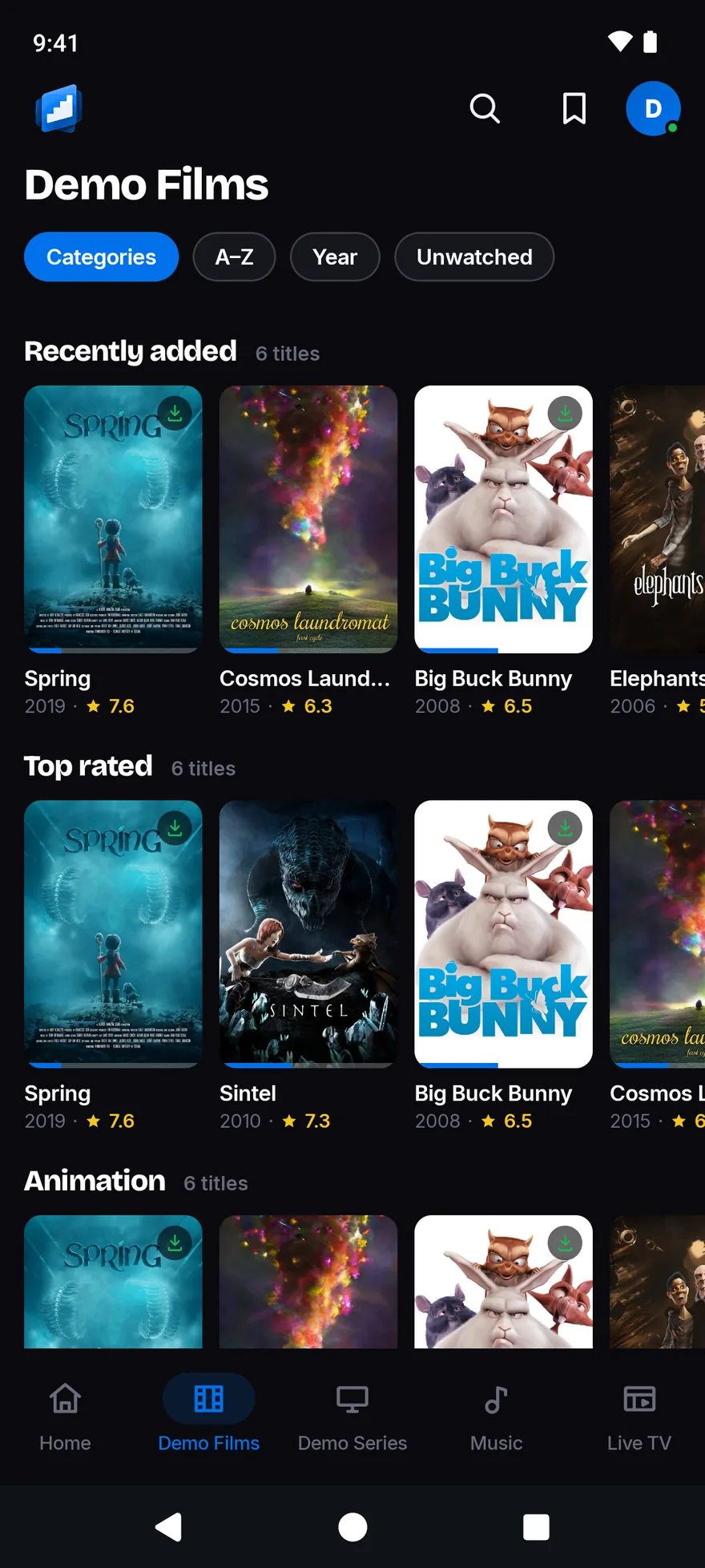
The Demo Films library with Categories, A to Z, Year and Unwatched chips, and rows of posters, some marked as downloaded.
LibrariesSort, filter and browse by category.
The Sintel page: its logo over the backdrop, a Resume button beside Play from start, Watchlist and Download, then the synopsis and the cast.
Title pagesDownload sits right next to Play.
The Downloaded screen with a storage meter and three films ready to play: Elephants Dream, Big Buck Bunny and Spring.
DownloadsWait for Wi-Fi if you like, and set a storage limit.
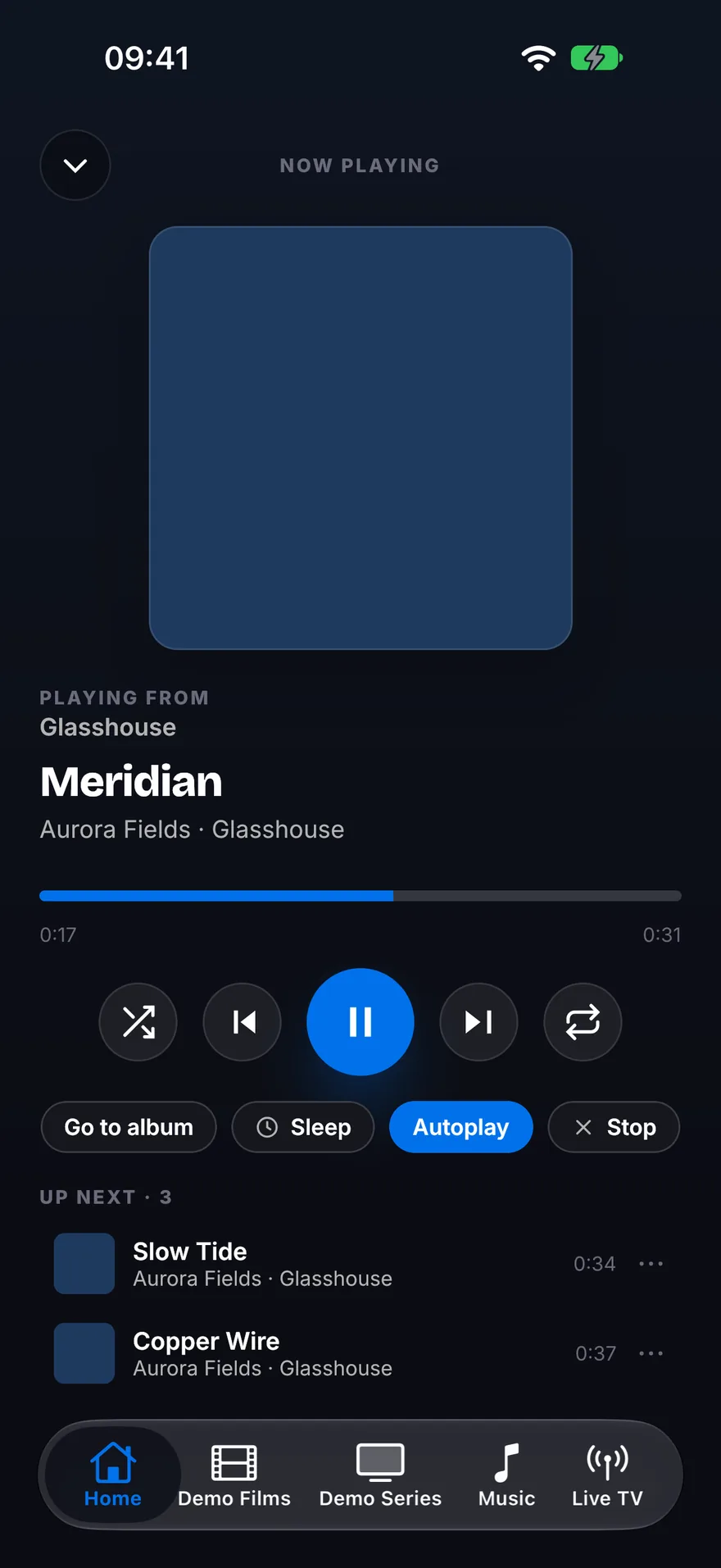
The Now Playing screen with the track Meridian, a progress bar, transport buttons, a sleep timer and an Up Next list.
MusicNow Playing, with Up Next underneath.
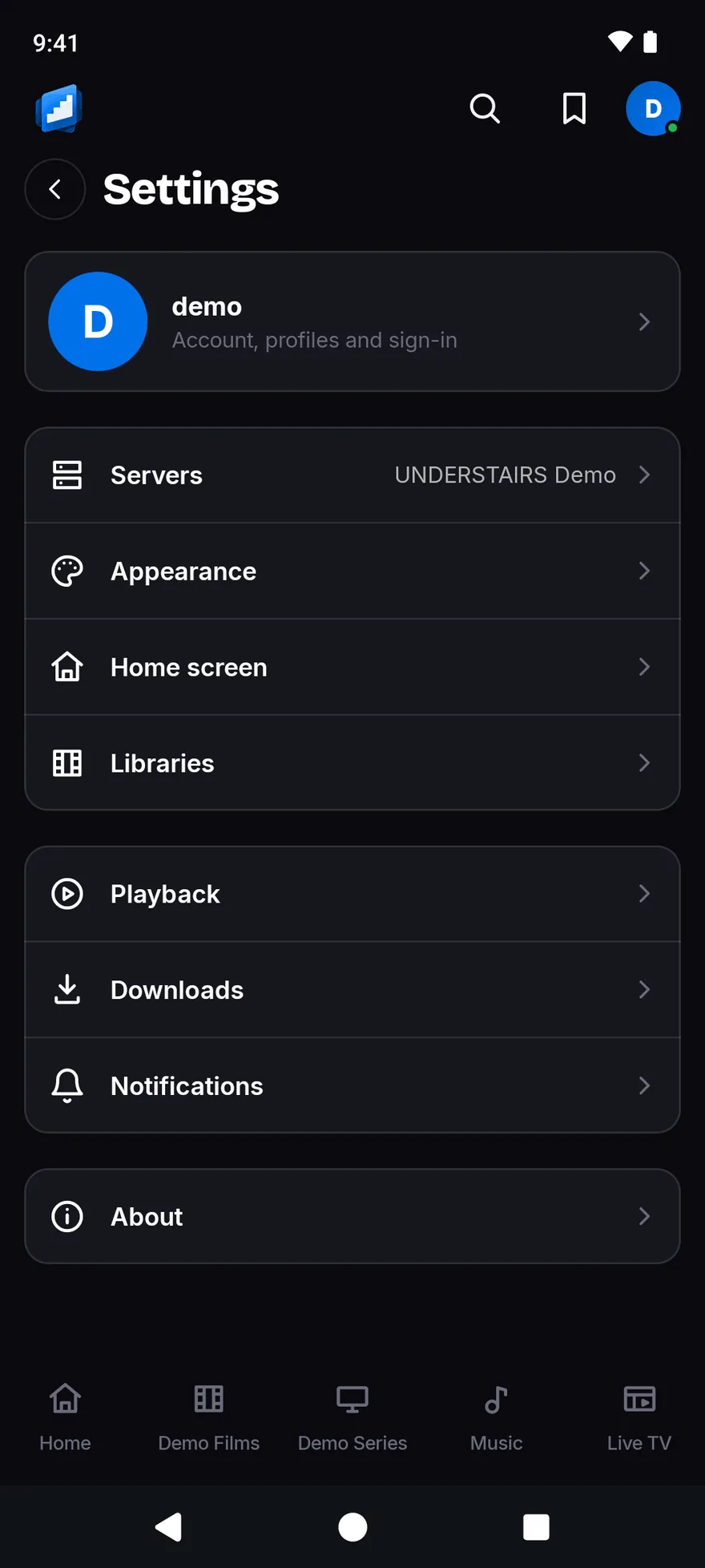
The Settings list: the account, Servers, Appearance, Home screen, Libraries, Playback, Downloads, Notifications and About.
SettingsSeven themes, downloads and more.

iPhone and iPad

UNDERSTAIRS for iPhone and iPad.

Coming soon to the App Store, £1.99, paid once. It covers iPhone and iPad, and Apple Watch and CarPlay come with it. It needs iOS 16 or later.

  • Apple WatchYour music on your wrist. It works on its own with albums you saved, or as a remote for your iPhone.
  • CarPlayYour music on the car screen. Browse, search by voice, switch server and see what is next.
  • AirPlaySend a film from your iPhone or iPad to an AirPlay screen. It works with any server.

iPhone and iPad

Coming soon to the App Store

A small number points to a note in Good to know, at the end of the page.

What it does

  • Smart downloadsKeeps your next episodes ready on your phone, and clears them once you have watched them. It is off until you turn it on in Settings > Downloads.1
  • Downloads for offlineSave films, episodes and albums for the plane or the train.
  • NotificationsA nudge for new episodes, finished downloads and finished recordings. Recording alerts need a recorder on your server. New-episode alerts are not instant. Your iPhone decides when the app can check, so they can be hours late. Open the app to see what is new straight away.1
  • Continue Watching and Up NextOpen the app and your film or your next episode is one tap away.
  • Title logosEach title shows its own logo on Home and in the player. If your server has none, you see the name.
  • Skip intro and skip creditsOne tap jumps over the intro and the credits. You can also switch on skipping for you.2
  • Next episodeWhen an episode ends, the next one is ready: a button, or it just plays.
  • Your audio and subtitles stay putPick your language and subtitles once. Change the quality or press Retry, and they stay as you picked them.
  • No needless convertingThe app asks your device what it can play and sends it as it is. Your server converts only the rest.
  • Surround soundSurround sound goes to an Apple TV, a HomePod, AirPods or a receiver as it is.8
  • Quality choiceChoose Auto, Original, 1080p, 720p or 480p. You can also set a lower limit for mobile data, and pick your audio language.
  • Subtitle sizeMake subtitles bigger or smaller.
  • Subtitle colour and backgroundChange the colour, background and height of your subtitles.
  • Playback speedWatch faster or slower than normal.
  • Sleep timerFall asleep to a film or an album and it stops by itself. Choose 15, 30, 45 or 60 minutes.
  • Picture-in-pictureKeep the film in a small window while you do something else.
  • Scrub preview picturesWind through a film and see the pictures, not just a number.6
  • Live TV and recordingsWatch live channels, open the guide, record a programme or a series, and start a live programme again from the beginning.3
  • Cast to a TVSend a film to a Chromecast if your server is Emby, or to an AirPlay screen from any server.
  • TrailersWatch the trailer from a title’s page.
  • Cast and crew pagesA page for the cast and crew of each title.
  • MusicBrowse albums, artists and playlists.
  • CarPlayYour music on the car screen. Browse, search by voice, switch server and see what is next. It plays music only, no video.4
  • Apple Watch appYour music on your wrist. It works on its own with saved albums and playlists, or as a remote for your iPhone. It plays music only, no video.5
  • SearchSearch across your libraries.
  • Who is watchingEveryone gets a profile of their own, with their own history. Add a PIN if you like.
  • All your servers in one appAdd Jellyfin, Emby and Plex side by side and switch in a moment. The app looks for servers on your network.
  • Easy sign-inApprove a sign-in from another device, so you type less. That works with Jellyfin Quick Connect, the Plex link code and Emby Connect.7
  • Favourites and WatchlistKeep a list of what you want to watch. Jellyfin and Emby use Favourites. Plex uses your plex.tv Watchlist.9
  • Home you arrangeChoose and order the rows on Home, and which libraries show.
  • Seven colour themesMidnight, Slate, Ember, Crimson, Forest, Dusk and Cinema. There is also a Light theme and OLED black.
  • Problem reportSomething wrong? One screen in Settings > About gathers the details so you can send them to us.

Apple Watch

Comes with the iPhone app

It plays music only.

What it does

  • Downloads for offlineKeep albums and playlists on your watch.
  • Sleep timerFall asleep to your music and it stops by itself.
  • MusicBrowse albums, artists and playlists.
  • SearchSearch across your libraries.
  • All your servers in one appIt takes its servers from your iPhone.

It has no video. The iPhone app does the rest.

CarPlay

Comes with the iPhone app

It plays music only.

What it does

  • MusicBrowse albums, artists and playlists.
  • SearchSearch across your libraries.
  • All your servers in one appSwitch server on the car screen.

It has no video. The iPhone app does the rest.


Android phone and tablet

UNDERSTAIRS for Android.

Coming soon to Google Play, £1.99, paid once. It needs Android 8.0 or later.

  • Subtitles you can restyleChange the size, colour, background and height of your subtitles.
  • ChromecastSend a film to a Chromecast if your server is Emby.
  • Picture-in-pictureKeep the film in a small window while you do something else.

Android phone and tablet

Coming soon to Google Play

A small number points to a note in Good to know, at the end of the page.

What it does

  • Smart downloadsKeeps your next episodes ready on your phone, and clears them once you have watched them. It is off until you turn it on in Settings > Downloads.1
  • Downloads for offlineSave films, episodes and albums for the plane or the train.
  • NotificationsA nudge for new episodes, finished downloads and finished recordings. Recording alerts need a recorder on your server. New episodes are checked about every 15 minutes, less often when your phone is idle. Open the app to see what is new straight away.1
  • Continue Watching and Up NextOpen the app and your film or your next episode is one tap away.
  • Title logosEach title shows its own logo on Home and in the player. If your server has none, you see the name.
  • Skip intro and skip creditsOne tap jumps over the intro and the credits. You can also switch on skipping for you.2
  • Next episodeWhen an episode ends, the next one is ready: a button, or it just plays.
  • Your audio and subtitles stay putPick your language and subtitles once. Change the quality or press Retry, and they stay as you picked them.
  • No needless convertingThe app asks your device what it can play and sends it as it is. Your server converts only the rest.
  • Surround soundSurround sound goes to a soundbar or receiver as it is.8
  • Quality choiceChoose Auto, Original, 1080p, 720p or 480p. You can also set a lower limit for mobile data, and pick your audio language.
  • Subtitle sizeMake subtitles bigger or smaller.
  • Subtitle colour and backgroundChange the colour, background and height of your subtitles.
  • Playback speedWatch faster or slower than normal.
  • Sleep timerFall asleep to a film or an album and it stops by itself. Choose 15, 30, 45 or 60 minutes.
  • Picture-in-pictureKeep the film in a small window while you do something else.
  • Scrub preview picturesWind through a film and see the pictures, not just a number.6
  • Live TV and recordingsWatch live channels, open the guide, record a programme or a series, and start a live programme again from the beginning.3
  • Cast to a TVSend a film to a Chromecast if your server is Emby.
  • TrailersWatch the trailer from a title’s page.
  • Cast and crew pagesA page for the cast and crew of each title.
  • MusicBrowse albums, artists and playlists.
  • SearchSearch across your libraries.
  • Who is watchingEveryone gets a profile of their own, with their own history. Add a PIN if you like.
  • All your servers in one appAdd Jellyfin, Emby and Plex side by side and switch in a moment. The app looks for servers on your network.
  • Easy sign-inApprove a sign-in from another device, so you type less. That works with Jellyfin Quick Connect, the Plex link code and Emby Connect.7
  • Favourites and WatchlistKeep a list of what you want to watch. Jellyfin and Emby use Favourites. Plex uses your plex.tv Watchlist.9
  • Home you arrangeChoose and order the rows on Home, and which libraries show.
  • Seven colour themesMidnight, Slate, Ember, Crimson, Forest, Dusk and Cinema. There is also a Light theme and OLED black.
  • Problem reportSomething wrong? One screen in Settings > About gathers the details so you can send them to us.

Where from

Coming to the App Store and Google Play.

Not live yet. Email us and we will tell you the day each one is out.

Coming soonApp StoreComing soonGoogle Play

Your server

Bring the server you already have.

JellyfinEmbyPlex

UNDERSTAIRS has no films or channels of its own. It shows what is on your Jellyfin, Emby or Plex server, and talks to that server directly. You do not need an account with us.

With Jellyfin and Emby, type the address or let the app look for your server. With Plex, you approve a link code on plex.tv, so the app never sees your Plex password.

UNDERSTAIRS is an independent app. It is not affiliated with, sponsored by, or endorsed by Plex Inc., The Jellyfin Project or Emby LLC. Their names only say which servers it works with.

Questions

Before you buy.

Do I need a server?

Yes. UNDERSTAIRS shows what is on your own Jellyfin, Emby or Plex server. It has no films or channels of its own.

Until you add a server, you only see the sign-in screen.

Which devices does it run on?

iPhone and iPad with iOS 16 or later, and Android phones and tablets with Android 8.0 or later. Apple Watch and CarPlay come with the iPhone app. The watch app needs watchOS 10 or later.

How do I turn on Smart downloads?

Open Settings, then Downloads, and switch Smart downloads on. Then open a show or a season and choose how many episodes to keep ready.

It is off until you do this, so nothing downloads behind your back. Downloads wait for Wi-Fi unless you change that.

Where do downloads live?

In the app’s own private storage on your device. Nothing about a download reaches us, because we run no server for it to reach. Deleting a download, or the app, removes it.

Can I download from a Plex server?

Yes, if your Plex server allows it. Whether a title can be taken offline is your server’s decision, not the app’s.

Is there an Android TV or Google TV app too?

Yes. It is a separate app, the same TV app as on Fire TV. It is coming soon to Google Play. See the Android TV section.

What does the app send about me?

Nothing to us. It talks to your server, and to Plex if you use Plex. The privacy policy lists all of it.

The small print

Good to know.

Each note says who it affects, what you need, and why. The small numbers on this page point here.

  • 1. Smart downloads and alertsSmart downloads and alerts are for the phone apps. Smart downloads are off until you turn them on once in Settings > Downloads. Then you choose each show or season from its own page. New-episode alerts are not instant. Android phones check about every 15 minutes. On iPhone, iOS decides when the app can check, so an alert can be hours late. Opening the app checks straight away. With Plex, a title downloads only if your Plex server allows it.
  • 2. Skip intro and skip creditsThese need the marks your server holds. Jellyfin and Emby give both. Plex gives them where your Plex server has already found them.
  • 3. Live TV and recordingsYou need a TV tuner on your server. Emby needs Premiere, or recording permission for your account. Plex needs its recording feature set up first.
  • 4. CarPlayCarPlay is for iPhone, and it plays music only, with no video. Voice search is an extra. You switch it on once in your iPhone’s Settings, and it uses Apple’s speech recognition.
  • 5. Apple WatchThe watch app plays music only, with no video. It takes your servers from your iPhone, which you pair with the watch once.
  • 6. Scrub preview picturesThe pictures come from your server, so it needs to make them first. In Jellyfin, Emby and Plex, that is a setting for each library.
  • 7. Easy sign-inApproving a sign-in from another device works with Jellyfin Quick Connect, the Plex link code and Emby Connect. For Emby Connect, your Emby user needs to be linked to an Emby Connect account first.
  • 8. Surround sound on a phoneOn a phone, surround sound needs something that can play it. That is a soundbar or receiver on an adapter. From an iPhone, it can also be an Apple TV or HomePod over AirPlay, or AirPods with spatial audio. The phone’s own speaker and ordinary Bluetooth headphones play stereo only.
  • 9. Favourites and WatchlistJellyfin and Emby use Favourites. Plex uses your plex.tv Watchlist, so you need to sign in to plex.tv.